

UK Postcode Finder
6 Worked Examples
Section titled “6 Worked Examples”The following sections contain some worked examples. These examples are used as the basis for the worked examples in the Dashboards. Access to Ingenuity Hub within your subscription is required for all of these examples as they must be created as a Datasource Template first.
6.1 UK Postcode Finder
Section titled “6.1 UK Postcode Finder”The https://api.postcodes.io/api is an open API for finding information about UK postcodes.
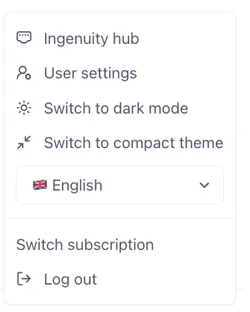
Access Ingenuity Hub by clicking on your user in the bottom left corner and selecting “Ingenuity Hub”
Go to the “Datasource templates” tab and click the [Add datasource template] button:
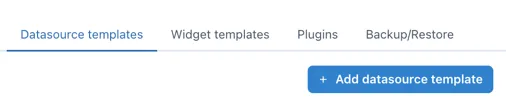
A new blank data source form will open including an template for configuring the data source.
6.1.1 Enter the metadata
Section titled “6.1.1 Enter the metadata”Enter the following data at the top of the form:
Name: Postcode Info
nameID: postcodes
Description: Use the docs from the API to put together a useful description for users:
Search the web for a suitable logo and upload it.
6.1.2 Configure the data source
Section titled “6.1.2 Configure the data source”From the docs we see that the structure of a request is
https://api.postcodes.io/postcodes/postcodeThe request can be a GET or a POST. We will use the GET method to keep it simple here.
Therefore, the first two lines of the datasource are:
"url": "https://api.postcodes.io/postcodes/{{postcode}}","type": "GET",6.1.3 Configure the inputs
Section titled “6.1.3 Configure the inputs”The only input is the postcode we want to retrieve data for. The default template has two inputs. Delete the second one (don’t forget to delete the comma after the first one) and configure the remaining input as follows:
"inputs": [ { "name": "postcode", "type": "url", "label": "Postcode", "isHidden": false, "isRequired": true, "description": "The postcode to get information about", "isConfigurable": false }],6.1.4 Configuring the outputs
Section titled “6.1.4 Configuring the outputs”The outputs are configured in the output section and as a minimum require a “name” and “path”.
"output": { "paths": []}The path is the json path expression to extract the data from the API response
With the inputs set, we can now use the Test button in the Preview section to check the response from the API. Enter a postcode (e.g. W12 7FW) and click Test. You should see the following in the Response window:
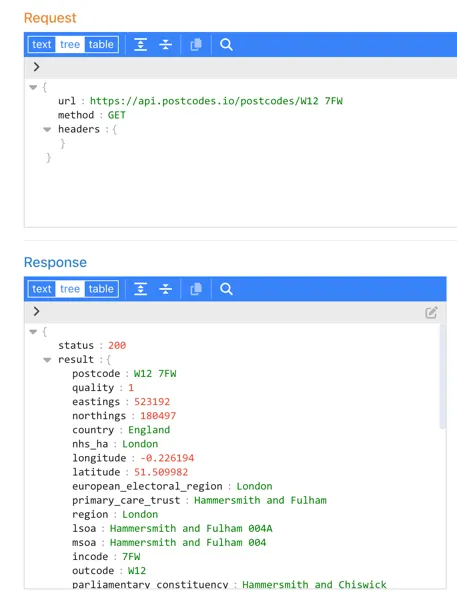
Explore the response to find the data you would like. For the purpose of this example, we are going to return the latitude and longitude, region, district and parliamentary constituency.
The default template only has one output, so we will need to copy this several times. Don’t forget to add the comma (,) at the end of each output except the last one.
The minimum configuration required for the outputs section is therefore:
"output": { "paths": [ { "name": "Postcode", "path": "$.result.postcode" }, { "name": "Region", "path": "$.result.region" }, { "name": "District", "path": "$.result.admin_district" }, { "name": "Latitude", "path": "$.result.latitude" }, { "name": "Longitude", "path": "$.result.longitude" }, { "name": "Constituency", "path": "$.result.parliamentary_constituency_2024" } ]},If we leave it like this the data source will work but it is not very user friendly as, if a user clicks on the “Details” button by the data source this is what they will see:
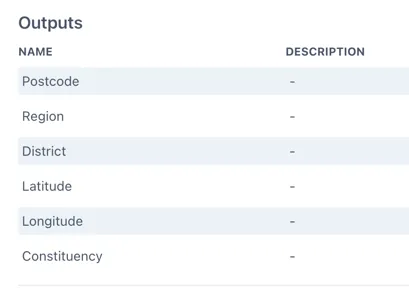
It is a good idea to add a description to each output so that it shows up in the information about the data source for a user. Information on all the outputs can be found in the API docs here: https://api.postcodes.io/docs
A fully configured data source output section would look like this:
{ "name": "District", "path": "$.result.admin_district", "type": "string", "description": "The current district/unitary authority to which the postcode has been assigned."},Configure the remaining sections
Section titled “Configure the remaining sections”The datasource is available on the internet so we do not need to use the back-end proxy. The outputs we have configured are compatible with a table and a multi-value components;
"useProxy": false,"compatibleWith": [ "table", "multivalue"]Save the data source template by clicking the Update button at the bottom of the form:

6.1.5 Challenge — improving the data source to handle partial postcodes
Section titled “6.1.5 Challenge — improving the data source to handle partial postcodes”The postcodes api has a query method that will return results for partial postcodes:
https://api.postcodes.io/postcodes?q=[query]
Have a go at modifying the data source to support this.
Examples of how to modify the inputs and outputs
Section titled “Examples of how to modify the inputs and outputs”The inputs section does not change but the url becomes:
"url": "https://api.postcodes.io/postcodes?q={{postcode}}",The path in the outputs must be updated to include the * to identify each result in the returned array
"path": "$.result.*.postcode",