

Edit & Display
3.1 How to edit and display content
Section titled “3.1 How to edit and display content”There are different options to edit the content in your Workspace. In this section we will cover how to edit, move and delete your content as well as different methods in which to display your content such as creating a report, saving as pdf and kiosk mode.
3.1.1 Edit content
Section titled “3.1.1 Edit content”To edit content, open the page or dashboard you wish to edit and then activate the “Edit” toggle on the right. This opens the page in edit mode and let you modify current widgets in it as well as adding new ones to it.
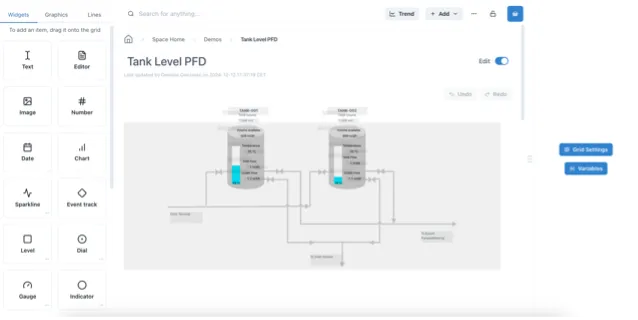
On the left side of the page, we can see the widgets, graphics and lines menu. To add a new widget, graphic or line, just drag and drop from the menu into the page. You will get the option to resize it by dragging the corner of the widget and on the right side we will see the menu to configure the selected widget. Click on the different options on the right-side menu to edit the value, limits, and other aspects of the widget. If you have doubts about what is in each category, you can hover over the question mark next to it to read a quick explanation of that category.
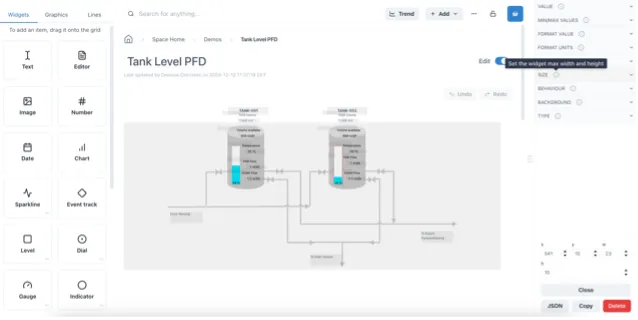
To edit an existing widget, click on it and the menu to configure it will be on the right side. To see the grid settings and variable buttons again, click on a blank space in the page.
Once you start modifying a page, the “Undo” button will be available in case you want to undo your latest changes. You will also see a message at the top of the page asking if you want to save or revert your changes. You can undo and redo changes as you go, and once you are happy with the results you can click on “Save” to save those changes. If you decide you want to revert all the changes you made on the page, you can do so by clicking on “Revert” at the top.

3.1.2 Move and copy content to other workspaces
Section titled “3.1.2 Move and copy content to other workspaces”To move content to a new workspace you can click on the three-dot button on the top right corner of the page and select “Move…”. A pop-up window will appear in which you can see the workspace and page your content is currently in. Select the workspace and page you want to move it to and select “Move”. You will be redirected to that workspace and page in the new location. This content will no longer be available in the original workspace you moved it from.
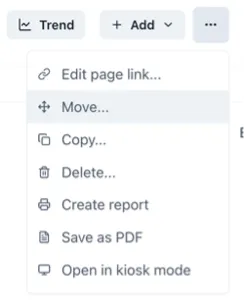
If you wish to create a copy of your content into another space while keeping the original, you can select “Copy…” under the same menu. This opens a pop-up window where you can select the workspace and page in which you want to create a copy of this page. Select this workspace and page and click “Copy”.
3.1.3 Delete content
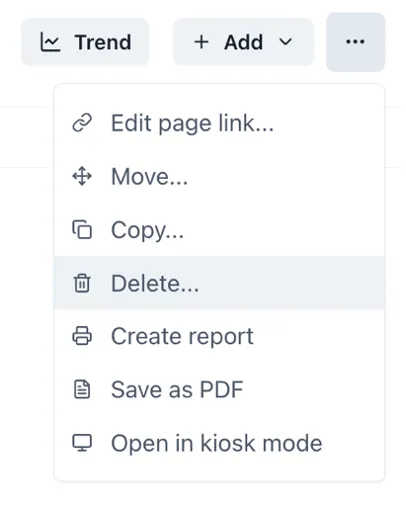
Section titled “3.1.3 Delete content”To delete content, you can select the “Delete…” option under the three-dot button. Have in mind that deleting a page or dashboard that contains another pages or dashboard within itself will delete those as well and deleting a page is an irreversible change.
3.1.4 Creating a report
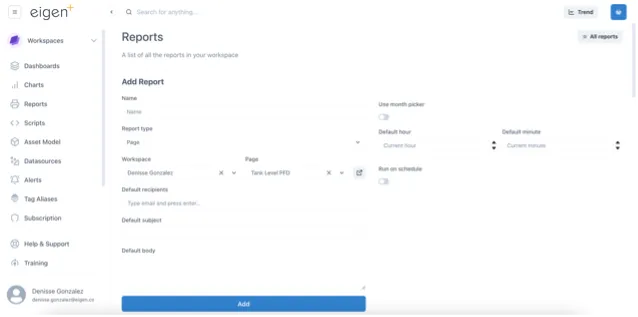
Section titled “3.1.4 Creating a report”To create a report from the current page you are in, click on the three-dot menu and select “Create report”. This will open the Add report page where you can define the name of the report, the default recipients, schedule options, etc. Below these configuration options you can see a preview of the report you are creating.
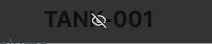
If you wish to create a shorter form of your dashboard, without all the widgets from the dashboard, select the widgets you wish to hide for this report by clicking on them in the dashboard preview. Widgets hidden from the report will have the following icon. To unhide it, click on it again.
Finally, click “Add” to create the report. All the reports will be available in the “Reports” option in the left side menu and when you are in a dashboard or page that has report you will see the following message at the top of the page.

3.1.5 Saving as PDF
Section titled “3.1.5 Saving as PDF”If you wish to save a PDF version of the page you are currently in, click on the three-dot button and select “Save as PDF” this will download a PDF of the page, like having a screenshot of the page at the moment of clicking this button.
3.1.6 Kiosk mode
Section titled “3.1.6 Kiosk mode”Kiosk mode allows you to see the current page you are in without the side menu or any other element to distract from your page. This option is ideal for enhancing the display of a page in a fixed screen for monitoring. To open kiosk mode, click on the three-dot menu and select “Open in kiosk mode”. Below you can see an example of the kiosk mode of a page.
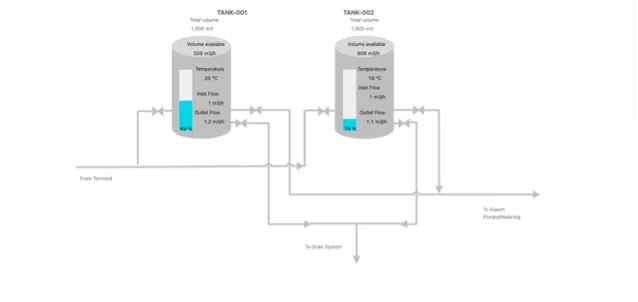
To get out of kiosk mode, hover over the bottom right side of the page and click the “Exit kiosk mode” button.