
Overview
1.1. What is a workspace
Section titled “1.1. What is a workspace”A Workspace is an area where you can create and store content made by yourself or other users. For example, you can have a workspace named after a company asset and inside that workspace keep dashboards, pages, reports and other content related to this asset.
Additionally, users get their own personal workspace where you can create your own pages or develop content that will later be moved to a more general workspace such as content regarding a particular asset, department, etc.
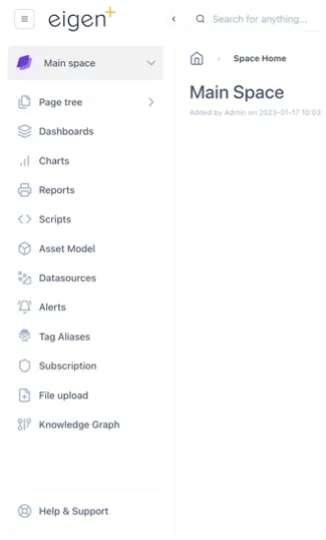
Workspaces can be edited by different users according to their permission settings and the permission settings of the individual pages within them. You can see the workspace you are in on the top left corner.
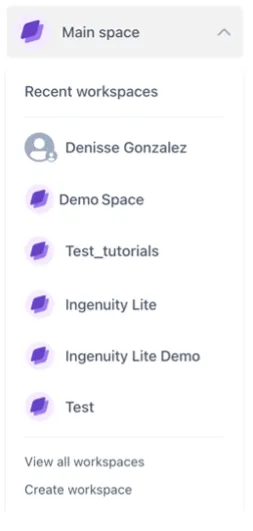
To navigate to other workspaces, you can click on the name of the workspace you are on, and the drop-down menu will show you your recent workspaces, allow you to view all workspaces and to create a new workspace.
1.2 What is a page
Section titled “1.2 What is a page”A page is the main format of content creation in Ingenuity 7. Pages are stored inside workspaces and can be rearranged to store other pages within themselves in a similar manner as folders and documents in a computer.
Pages can be edited to include charts, levels, gauges, dials and other KPI widgets to display relevant information and create dashboards or reports out of them.
1.3 What is the page tree and how to edit it
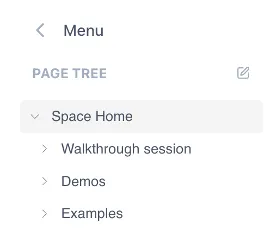
Section titled “1.3 What is the page tree and how to edit it”Under the page tree you can find all the pages inside a workspace. You can find the “Page tree” button under the workspace name you are in. Click on it to open the page tree and look at the content in it.
If you have permissions to edit that workspace, you will be able to see an edit button next to the page tree. Click on it to edit the page tree.
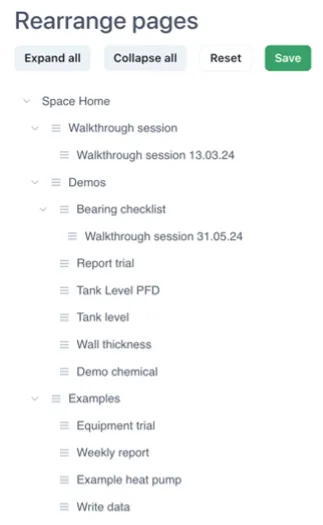
In that view you can expand all the pages and drag and drop them to other pages to keep them organized, similar to having folders and documents within those folders.
To save this changes you click on the “Save” button at the top and to revert the changes you can click on “Reset”. These buttons will only be available after changes to the page tree have been made.